Advanced TUN Mode on Windows
Reduce DNS leak risks in Windows TUN mode through system policies and browser settings.
This article explains how to reduce DNS leak risks when using TUN mode on Windows.
DNS leaks can expose your real destination domains and network activity, reduce privacy, make ISP traffic profiling easier, and even weaken your proxy routing strategy.
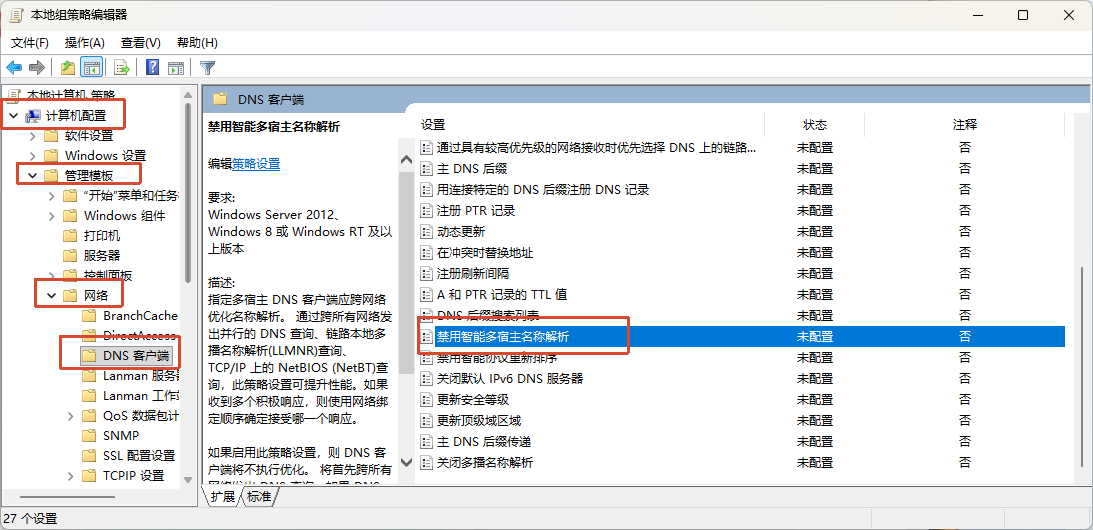
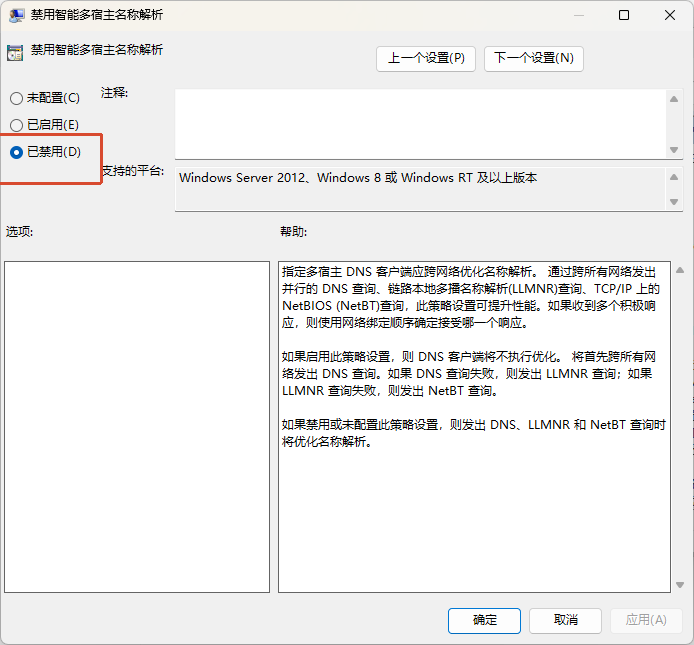
1. Disable Smart Multi-Homed Name Resolution in Windows
DNS leaks may occur in environments with virtual network adapters. With multiple network interfaces active, Windows may send DNS queries through the fastest responding interface, which can bypass the virtual adapter.
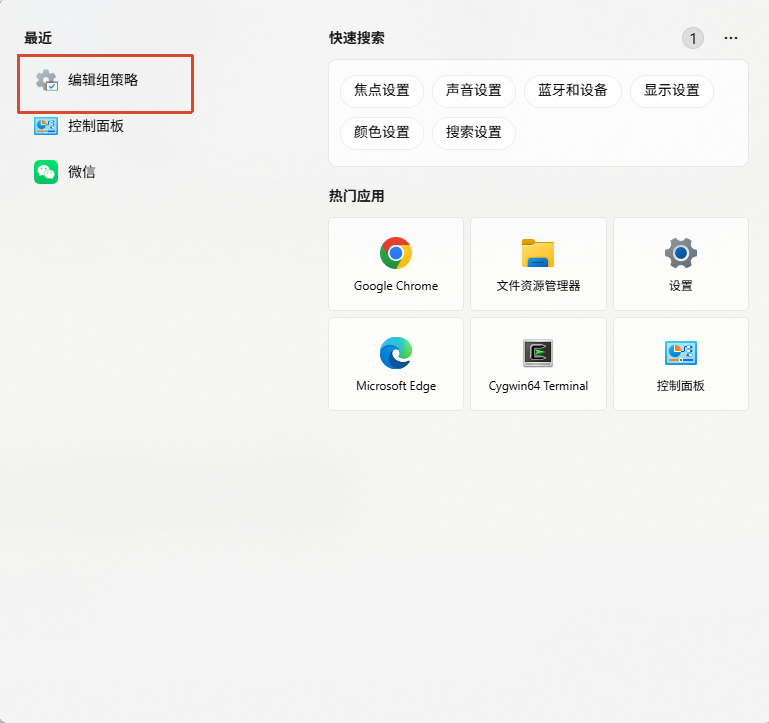
It is recommended to disable this policy:
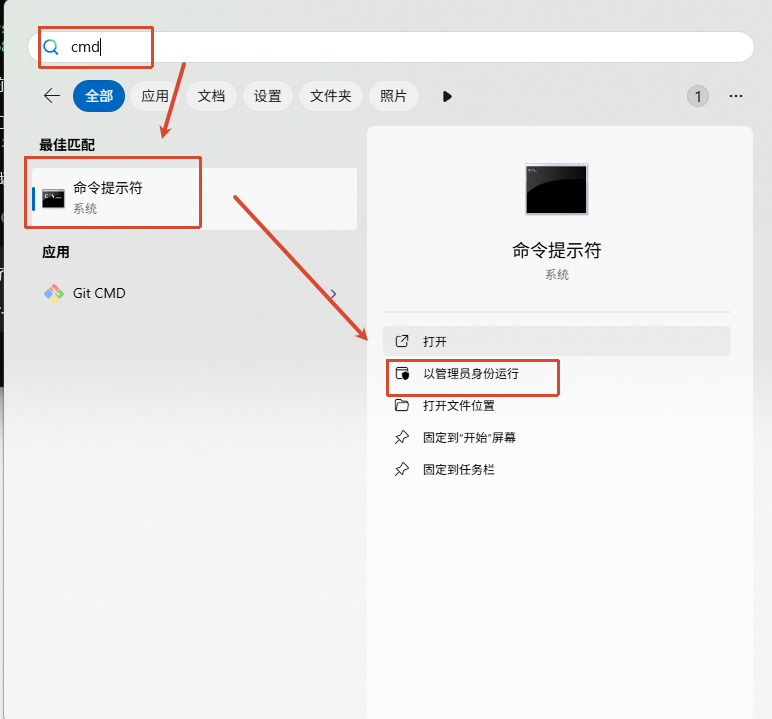
If you cannot find Group Policy Editor (common on Windows Home edition), you can apply the setting manually with an elevated command prompt:
- Copy the command below:
reg add "HKLM\SOFTWARE\Policies\Microsoft\Windows NT\DNSClient" /v DisableSmartNameResolution /t REG_DWORD /d 1 /f
- Open the Start menu and search for
CMD. - Find
Command Prompt, right-click it, and chooseRun as administrator. - Paste the command into the window and press
Enter. - Restart Windows after the command completes.
2. Disable QUIC in the browser
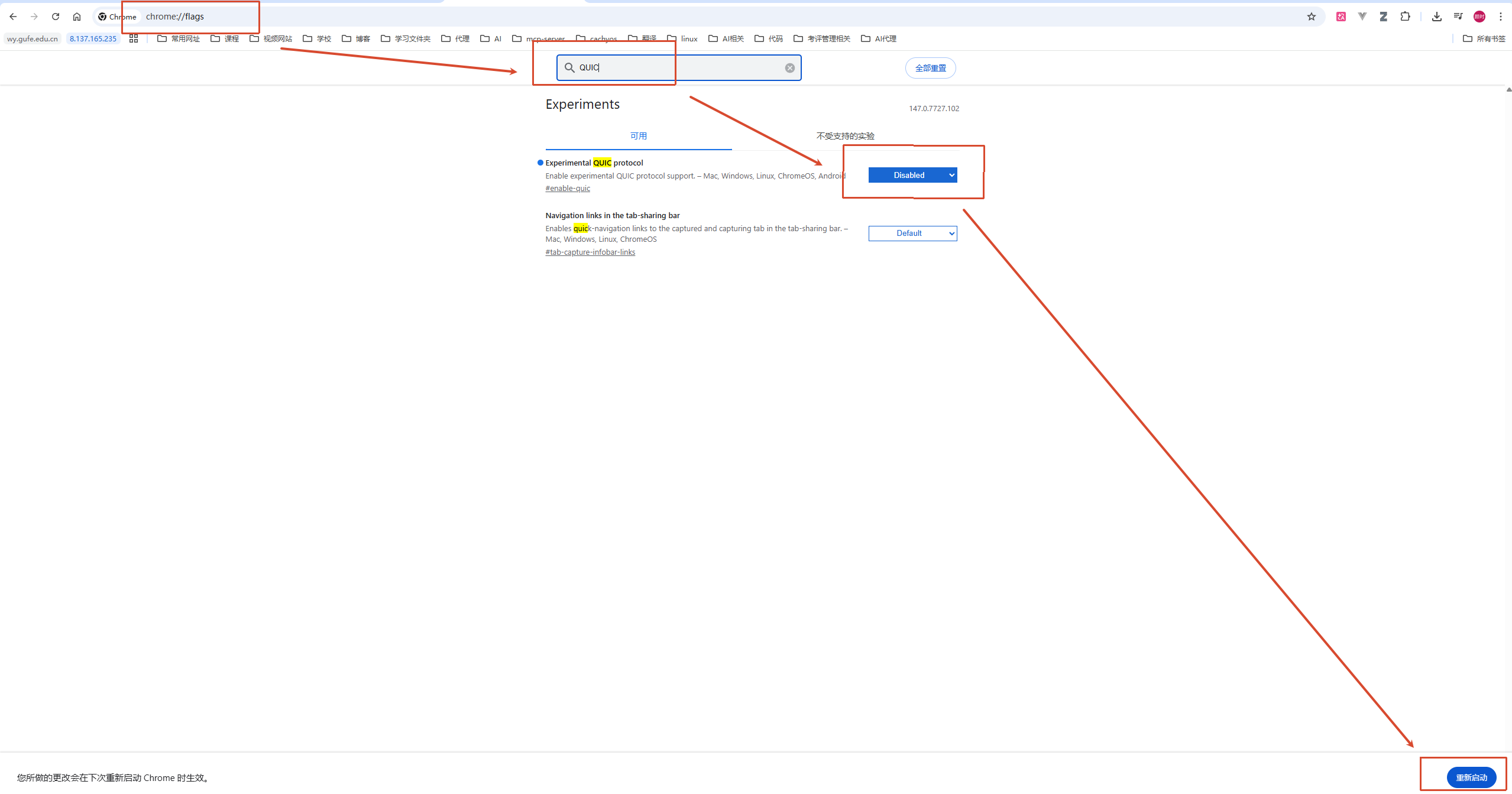
Using Chrome as an example, open:
chrome://flags/
Search for QUIC and set it to Disabled.